
Quotes
In ToolbagCRM, estimates and other price proposals are called Quotes. Create a quote with line items, send it to the customer for approval, and let acceptance create the billing handoff without retyping the scope.
Open Quotes from the main navigation. Quotes is part of the core product, so there is nothing to enable.
When to use Quotes
Use Quotes when a customer needs to approve scope or price before work starts. This is common for larger jobs, replacement work, project phases, upgrades, or any visit where the office should confirm the price before dispatching a crew.
Before you start
- Quotes is core on every plan. It is always on and does not use a plugin slot.
- At least one customer must exist in your account.
- If you want to use tiered packages (Good / Better / Best), enable the Tiered Packages sub-feature under Settings → Features.
- Customers need an email address on file to receive quote emails.
- Creating a job from a quote requires quote write access, permission to create Jobs, and access to Invoices.
The quote list
The quote list shows all quotes with a header displaying the total count. While a customer search or status filter is active, the header instead shows how many quotes match.
Status tabs
Filter the full quote list by All, Draft, Sent, Accepted, or Declined. Changing the status resets the list to its first page while preserving the customer search.
Search
Search by quote number or customer name to filter the full quote list. ToolbagCRM keeps the search and status in the page URL, so browser Back and Forward restore the earlier filter state. If no quotes match, select Clear filters to return to the full list.
What each row shows
- Quote # — the server-assigned number, such as
Q-0001 - Customer name
- Amount — the quote total
- Status badge — Draft, Sent, Accepted, or Declined
- Date — when the quote was created
Create a new quote
- Click New Quote.
- Use Find customer to search by name, email, or phone, then select a Customer (required).
- If tiered packages are enabled, choose a package to auto-populate its line items.
- If tiered packages are not enabled, add line items manually with a description, quantity, and unit price for each.
- Under Customer-facing details, add any optional Scope of work, Customer notes, Terms and conditions, Discount (%), Tax (%), and Expires on date. ToolbagCRM applies the discount to the subtotal before calculating tax.
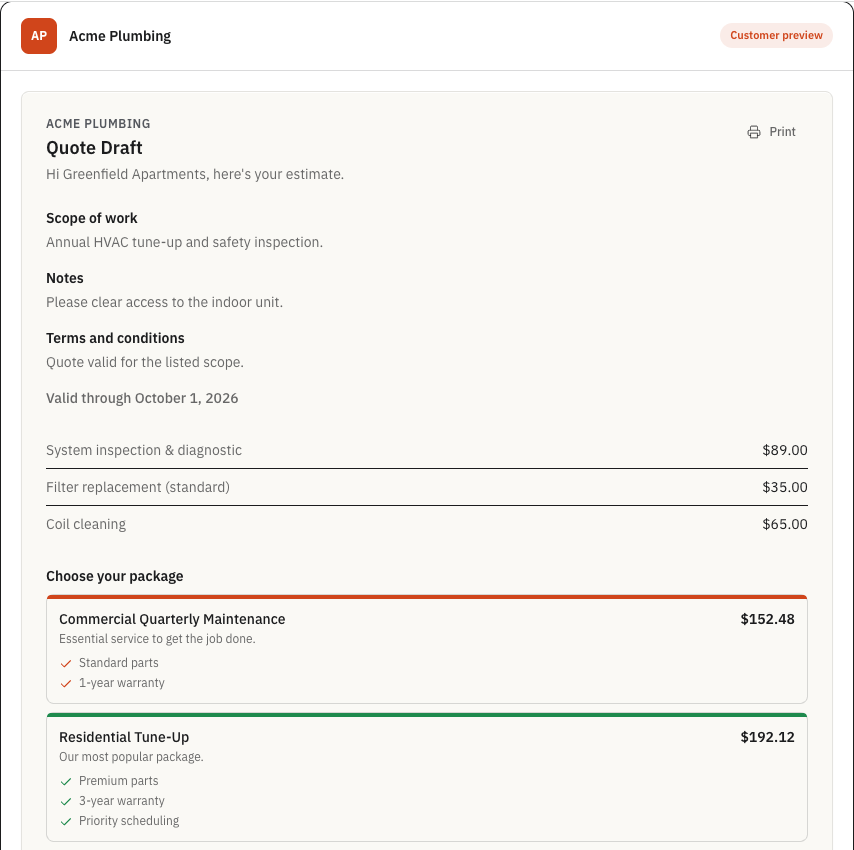
- Review Customer preview. It shows the customer-facing document with your company contact details, work description, line items or package choices, pricing breakdown, signature requirement, and expiration date.
- Save the quote.
New quotes default to Draft status. ToolbagCRM assigns the next Quote # when the quote is saved. The preview can show all currently active package options so customers can compare them; the package chosen in the form remains the quote's starting option.
The quote cannot be saved until the authoritative customer preview loads. If the preview is unavailable, select Retry preview instead of assuming the customer will receive the current draft.
Validation rules
- Customer is required.
- If using tiered packages, a package must be selected.
- If adding line items manually, at least one item needs a description and positive quantity.
- Quantity must be greater than zero; unit price cannot be negative.
- Discount (%) and Tax (%) must each be from
0to100. - Expires on must be today or a future date according to your company's calendar day.
Quote statuses
Quotes follow this lifecycle:
Draft → Sent → Accepted (terminal)
Draft → Declined (terminal)
Sent → Declined (terminal)- Draft — Created but not yet sent. Only visible to staff.
- Sent — The send was confirmed, a customer link is available, and ToolbagCRM started an email delivery attempt. Check the delivery activity separately to see whether the email is queued, provider accepted, delivered, or failed.
- Accepted — The customer or staff has approved the quote. Accepted is terminal: it cannot be changed to Declined. Continue with invoice review, then select Create job in the quote drawer when the approved scope should move into Jobs.
- Declined — The customer has declined. Create a new quote if they change their mind later.
Staff can decline a quote while it is Draft or Sent. Accepted and Declined are terminal statuses.
Quote detail view
Click any quote row to open the detail drawer. It shows:
- Status badge at the top.
- Customer name, date, and Quote #.
- Package name linked to the tiered-package library when the saved package still exists; otherwise the saved package code.
- Line items with description, quantity, unit price, and line total.
- Flow card showing the current status, previous status changes, related activity, planned next transitions, and guided status actions.
- Total amount prominently displayed.
- Customer preview on Draft and Sent quotes. This is the document the customer will receive, including scope, notes, terms, expiration, subtotal, discount, tax, total, package choices, and signature requirement.
Actions (contextual by status)
- Print / save as PDF: Opens the browser print dialog for the customer-facing quote. Choose your browser's PDF destination when you need a file; ToolbagCRM does not generate a separate downloadable PDF.
- Draft or Sent: Send to customer / Resend to customer, Edit quote, and the available status actions. Editing lets you update the customer-facing details and pricing before the customer accepts.
- Flow card: Advance to... moves the quote one normal step forward. On a Sent quote, advancing to Accepted also creates and links the job when your role can create Jobs. Decline quote remains separate on Draft and Sent quotes. Accepted and Declined quotes have no further status actions.
- After queueing: A customer link, the email attempt's current status, and Review communication history for the customer.
- Sent without a linked job: Accept & create job asks for confirmation, then marks the quote Accepted, creates the related job, and links its draft invoice.
- Accepted without a linked job: Create job creates the related job and links the existing draft invoice.
- Accepted with a linked job: View Job opens that job. Creating or accepting the quote does not schedule a visit.
Send a quote to a customer
- Open a quote in the detail drawer.
- Review Customer preview, including any package choices, discount, tax, signature requirement, and expiration date.
- Select Send to customer.
- In Send quote [quote number]?, review the exact Recipient, Channel, Subject, Message, link and attachment summary, and Timing. Opening this review does not send or change the quote; select Cancel to return safely.
- Select Queue email. For a resend, the confirmation action is Queue another email.
- ToolbagCRM validates that the quote is not already Accepted, Declined, or expired and that the customer has an email address. It also confirms that the customer document and delivery details still match what you reviewed.
- The quote status changes to Sent, the email delivery attempt begins, and the public customer link appears for copying.
- Read the delivery status beside the link. It distinguishes queued, provider accepted, delivered, and failed attempts; Review communication history opens that customer's activity.
The reviewed message contains the secure public quote link and no PDF attachment. Resending creates a new delivery attempt but reuses the same customer link, so previous links keep working.
ToolbagCRM checks both reviews again immediately before queueing. If customer-facing quote details or account rules changed, the refreshed customer preview appears with The customer preview changed. Review it before sending. If the recipient or email details changed, the send confirmation refreshes with The delivery details changed. Review them before sending. Review the current information, then confirm again.
Customer experience (public link)
Customers open the quote through a signed public link — no login required. The public view and quote email use the customer's saved English or Spanish message preference, falling back to English when no supported preference is available. The page shows your company's phone, address, and website so the customer knows who sent the quote. The customer can use the page's language selector without changing the saved preference on their customer record. Staff-written descriptions and custom wording remain as entered. Customers can:
- View the quote number, scope of work, customer notes, terms and conditions, line items, valid-through date, subtotal, discount, tax, and total when those details were added.
- Print the quote or choose the browser's Save as PDF destination.
- Select a tier if tiered packages are enabled.
- Accept the quote (optionally providing a signature if signature capture is enabled).
- Decline the quote with an optional reason.
When a quote is accepted, ToolbagCRM creates or reuses the linked Draft invoice from the quote's line items so the office can review, send, or collect payment without retyping the scope. If the customer refreshes or clicks Accept again, ToolbagCRM returns the same linked invoice instead of creating a duplicate.
If the office changes the price, scope, package presentation, or signature requirement while the customer has the link open, ToolbagCRM refreshes the quote and asks the customer to review the current version before accepting. An expired quote remains available to review and print, but the customer cannot accept or decline it; update Expires on and resend a current version.
After a quote is accepted
How the quote is accepted determines whether its related job already exists:
- Customer acceptance and the staff Mark Accepted action create or reuse the linked Draft invoice, but do not create a job.
- For a Sent quote, select Accept & create job when you want one confirmed action to accept the quote, create the job from its customer, location, and line items, and link the draft invoice.
- For an Accepted quote without a job, select Create job. If the job already exists, the drawer shows View Job instead.
- Use View Invoice to review the linked draft invoice before sending or collecting payment.
- Use View Job, then Schedule first visit now or Schedule Visit, to put the work on the calendar.
Quote acceptance and job creation do not automatically create a Scheduling visit. The Flow card presents the next normal transition as the main action instead of showing every future status at once, and keeps Decline quote separate from the normal advancement path on Draft and Sent quotes. Accepted and Declined quotes are terminal; create a new quote when the customer needs a different outcome after either status.
Tiered packages (Good / Better / Best)
When the Tiered Packages sub-feature is enabled, you can present customers with multiple pricing tiers:
- Each tier has a name, color, description, and feature list.
- Layout options include Inline (side by side), Podium (center tier raised), or Stacked (vertical).
- Customers see your configured tier names on the public quote page and can select one during acceptance. If a tier still has only its placeholder name, the public page uses the package's own name instead.
- Configure tiers in Quotes → Packages → Settings; see the Tiered Packages guide for the package-library workflow.
Tips
- Keep customer-facing line item descriptions clear; avoid internal shorthand.
- Set Expires on for seasonal pricing or volatile material costs so an outdated quote cannot be accepted accidentally.
- Read Customer preview before every send or resend; it combines the quote wording, final pricing, package presentation, and signature requirement in one place.
- In Send quote [quote number]?, verify the recipient and exact email before selecting Queue email. Afterward, use the delivery status or Review communication history instead of treating Sent as proof that the customer received it.
- If the customer approves only part of the scope, update the quote before accepting it and scheduling any follow-up job.
- Check the linked draft invoice after acceptance before sending it, especially when a customer selected a tiered package or signed from the public quote link.
- Use the Flow card when you want a guided status change with confirmation, then check status history to see the full audit trail of the quote's lifecycle.
Troubleshooting
The Create Quote button is disabled
When tiered packages are off, you must add at least one line item with a description and a quantity greater than zero before the Create Quote button becomes enabled. When tiered packages are on, select a package tier first.
I do not see every quote status as a Flow action
The Flow card shows the next normal status as the main action, so a Draft quote advances to Sent before Accepted. Decline quote is available while the quote is Draft or Sent. Once a quote is Accepted or Declined, no further status action is available.
The customer preview will not load
Creating, sending, and resending fail closed when ToolbagCRM cannot load the authoritative customer preview. Select Retry preview. Continue only after the preview shows the current document; save and send controls stay disabled while the preview is unavailable.
The customer preview changed before sending
Another edit or an account rule changed what the customer would receive. ToolbagCRM refreshes the preview instead of sending the stale version. Review the updated scope, pricing, package choices, signature, and expiration details, then select Send to customer again.
The quote has expired
Customers can still review and print an expired quote, but they cannot accept or decline it. Select Edit quote, choose today or a future date under Expires on, review the refreshed customer preview, and resend the quote.
The customer's public link shows an error
Immediately after declining, the customer sees a confirmation. A declined quote is terminal, so reopening its public link later shows an unavailable-link error. If the customer changes their mind, create a new quote.
The delivery details changed before queueing
The recipient address, subject, message, or other delivery detail changed after you opened the confirmation. ToolbagCRM refreshes Send quote [quote number]? without creating a delivery attempt. Review the current details, then select Queue email again.
The delivery details will not load
ToolbagCRM does not queue anything when the confirmation details are unavailable. Leave the quote open and select Send to customer again. If the review still does not appear, confirm the customer has a current email address and retry later; nothing was sent.
The quote email is queued, provider accepted, or failed
These are delivery-attempt states, not customer-receipt guarantees. Provider accepted means the email provider accepted the message; only Delivered confirms a provider receipt. Select Review communication history for the customer's current activity. After a failed attempt, correct the address or email connection and use Resend to customer, review the message, then select Queue another email to create a new attempt.
Create job is unavailable or fails
Creating a job from a quote requires quote write access, permission to create Jobs, and access to Invoices. Ask an administrator to review those permissions. A Declined quote cannot be converted; create a new quote if the customer later approves the work. If an Accepted quote already has a linked job, use View Job instead of looking for Create job.