
Account Security
Protect your own ToolbagCRM sign-in with an authenticator app and keep a way back in if you lose your device. You can also link a Google account for sign-in. These personal account controls are available under Settings → Security; they do not require a plugin.
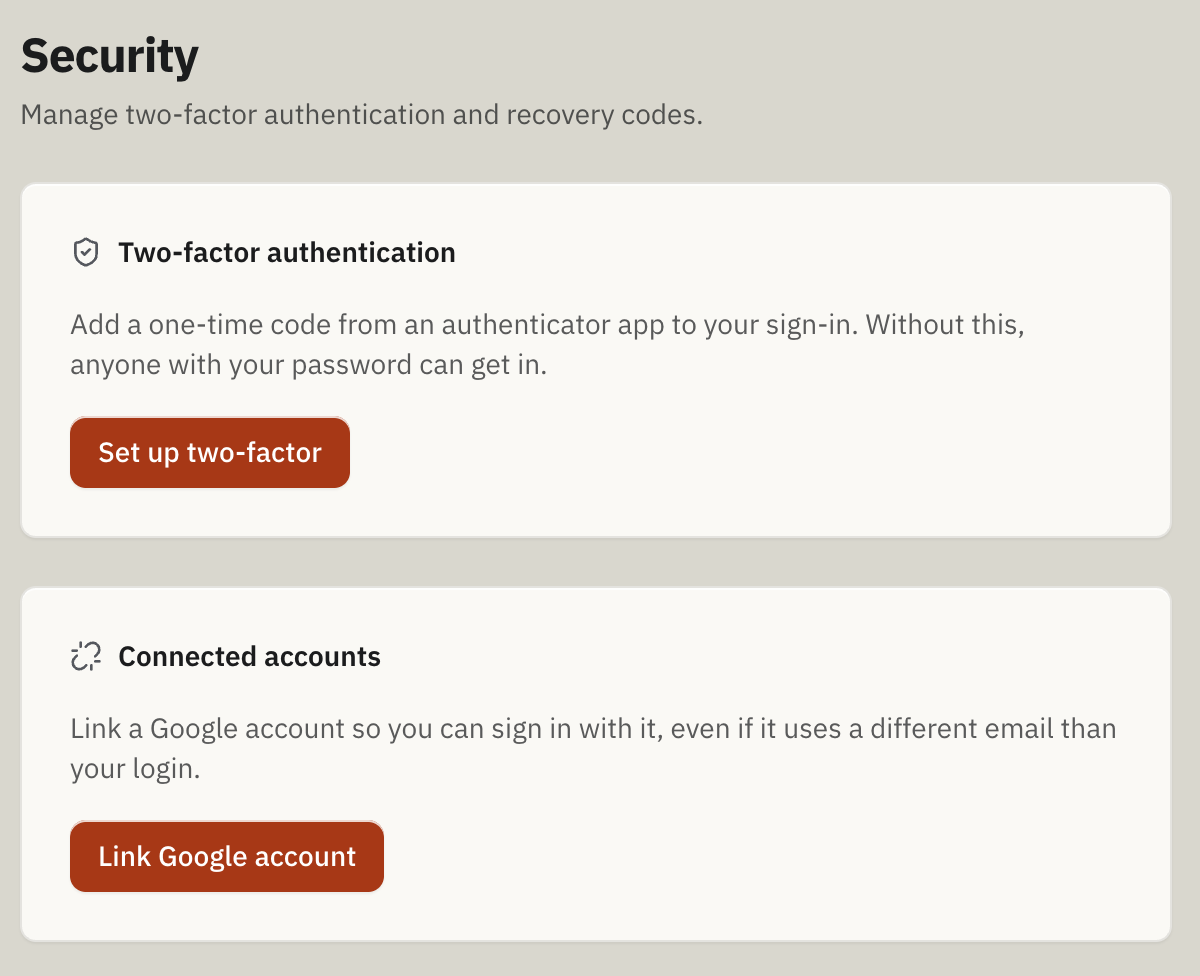
When to use this
- Add two-factor authentication (2FA) so a password alone is not enough to sign in.
- Save or replace recovery codes so you can sign in if your authenticator is unavailable.
- Link a Google account if you want another way to start sign-in.
Set up two-factor authentication
- Sign in and open Settings → Security.
- Under Two-factor authentication, select Set up two-factor.
- Add ToolbagCRM to your authenticator app using the Setup key. The page also provides a Provisioning URI (advanced). Keep both private; either can be used to generate your sign-in codes.
- Enter the fresh 6-digit code from app and your Current password, then select Confirm and enable.
- Save the recovery codes somewhere secure before selecting I've saved them. Each code can be used once, and the page will not show this set again.
- Sign in again. Enabling 2FA closes existing sessions, including sessions for other ToolbagCRM businesses associated with your account.
The setup is not complete until ToolbagCRM verifies the app code and password. If your sign-in requires 2FA before you can open the workspace, follow the enrollment screen instead: enter its setup key in your app, confirm with a fresh six-digit code and your current password, save the recovery codes, then sign in again. You can select Sign out and use a different account before completing enrollment.
Sign in or replace recovery codes
After entering your password, provide a fresh authenticator code when prompted. If you cannot use the app, enter one of your saved, unused recovery codes instead. A code that has already been used cannot be used again.
To replace the set while you can still sign in, open Settings → Security and select Regenerate recovery codes. Confirm with your current password and a fresh six-digit authenticator code, then save the new codes. The previous set no longer works after regeneration. Keep the new codes private and do not store them beside your password.
Link or unlink a Google account
Under Connected accounts, select Link Google account and complete Google's sign-in and consent steps. Return to Settings → Security and confirm the page says the account is linked before depending on it. Once linked, you can choose Continue with Google on the ToolbagCRM sign-in page. Linking a Google account does not turn off an existing authenticator requirement.
To remove the connection, select Unlink Google account under Connected accounts. Make sure you can sign in by another method before unlinking. If linking is cancelled, expires, or says the selected Google identity is already linked to another user, continue with your existing sign-in and try again with the intended Google account.
Troubleshooting
The setup code is rejected
Check that you entered the current six-digit code from the account you just added to your authenticator and that your device time is correct. Enter your current ToolbagCRM password as well. If setup was interrupted, return to Settings → Security and start again; use the setup key from the new attempt rather than an older one.
I lost my authenticator
At sign-in, use an unused recovery code. If your authenticator is still unavailable, contact support to recover access to your two-factor setup: the Regenerate recovery codes form in Security requires a fresh six-digit authenticator code as well as your password. If you have neither an authenticator nor a recovery code, select Can't get in? Contact support on the sign-in page. Do not send your password, setup key, or recovery codes in the support request.
I cannot disable 2FA
Staff accounts that are required to use two-factor authentication cannot turn it off. Use a recovery code at sign-in if your authenticator is unavailable, or contact support for recovery. Do not assume that linking Google bypasses this requirement.
Google linking did not appear to finish
Reload Settings → Security and check Connected accounts before trying another link. A cancelled, expired, unverified, disabled, or already-linked Google identity may not be connected; the page reports a linking error. Keep using your existing sign-in until the linked state is confirmed.