
Customer Equipment
Customer Equipment keeps a service history for the units your team maintains at each customer site, such as HVAC systems, water heaters, generators, pumps, appliances, or irrigation controllers.
When to use this
Use this plugin when technicians need to know exactly what is installed before they arrive on site. It is especially useful for teams that repeatedly service the same equipment and need quick access to make, model, serial number, install year, warranty status, filter size, refrigerant type, property address, and technician notes.
Before you start
- Confirm Customer Equipment is included in your ToolbagCRM plan.
- Enable Customer Equipment from Settings → Features or the Marketplace.
- Make sure your customer records are ready so equipment can be tied back to the right account or property.
- Decide which fields your team will treat as required on every unit, such as serial number, warranty expiry, or filter size.
Add a customer-owned unit
- Open Customer Equipment from the ToolbagCRM navigation.
- Select Add Equipment.
- Enter the equipment name and category.
- Under Customer, select an existing Customer Record. ToolbagCRM fills the selected customer's current name and, when the property address is blank, that customer's address. Linked equipment stays aligned with the customer's current name after a rename, while existing service notes keep their historical labels. For intentionally unlinked equipment, leave Not linked — enter a name selected, then enter the customer name manually.
- Review the property address. The address fields use structured entry — start typing and Google Places autocomplete will suggest the full address, filling in street, city, state, and postal code automatically.
- Add the make, model, serial number, install year (1900–2100), and warranty expiry when known.
- For HVAC equipment, add filter size and refrigerant type so technicians can prepare before the visit.
- Add any internal notes your technicians should see before servicing the unit.
Equipment categories
When adding a unit, choose the category that best matches the equipment. ToolbagCRM uses these categories to organize the list and support filtering:
- Furnace, Air Conditioner, Heat Pump, Boiler — heating and cooling equipment
- Water Heater, Water Softener, Pump — plumbing and water-treatment equipment
- Electrical Panel, Generator — electrical equipment
- Irrigation Controller — irrigation and sprinkler systems
- Appliance — general household or commercial appliances
- Other — equipment that does not fit the categories above
If you choose the wrong category, edit the unit to correct it. Category labels appear in the equipment list so technicians and office staff can scan by type.
Track service notes
After a unit exists, expand Service Notes on its card to record service observations and technician follow-up. Enter the note body and, when useful, the technician's name. ToolbagCRM dates the note when it is added.
Use notes for details that should follow the unit over time, such as recurring issues, parts replaced, refrigerant charges, or maintenance reminders. Service notes stay with the equipment record; the current Customer Equipment screen does not include a control for linking a note to a job.
To remove a service note, select its trash icon and confirm the deletion. This permanently removes the note, so delete only entries that were added by mistake.
Dashboard counts
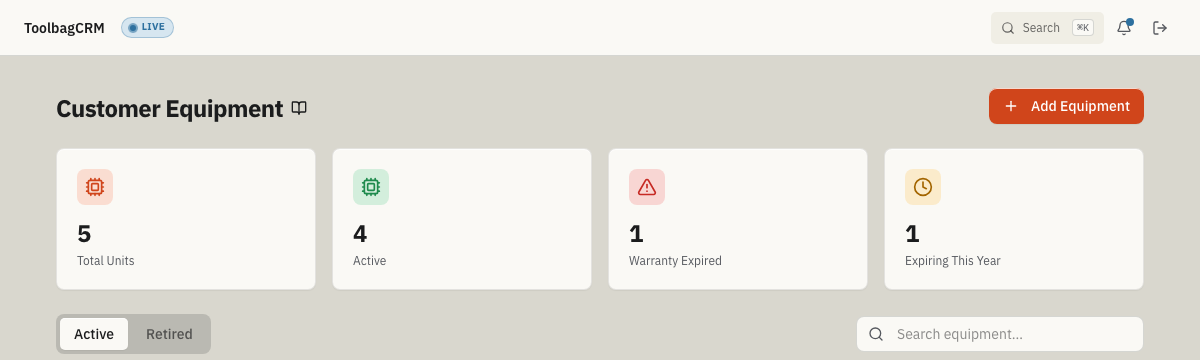
The Customer Equipment page shows summary cards with quick totals:
- Total units — all equipment records for the account, including retired units.
- Active units — equipment that has not been retired.
- Warranty expiring this year — active units whose warranty expires today or later in the current calendar year.
- Warranty expired — active units whose warranty expiry date is in the past.
Use the warranty counts to prioritize outreach to customers with aging equipment before service calls reveal expired coverage.
Retire or reactivate equipment
Use Retire unit when a customer replaces or removes a unit but you still want the old history available. Retired equipment moves out of the active list and can be reactivated later if needed. Use permanent deletion only when the record was created by mistake and no history needs to be preserved.
Tips
- Standardize naming, such as
Brand + size + unit type, so search results stay useful. - Record warranty expiry dates to surface equipment that may need special handling before repairs. Use the Warranty expiring this year count to plan proactive outreach.
- Add filter size and refrigerant type for HVAC units to reduce return trips.
- Retire replaced units instead of deleting them when the service history may still matter.
- Enter the technician name when adding a service note so the observation remains attributable.
- Use the address autocomplete when adding equipment — typing the street number and name fills in city, state, and postal code so addresses stay consistent across records.
Troubleshooting
The equipment list is empty
If the list is empty after enabling the plugin, add the first unit from the Add Equipment action. If saved units are missing, confirm you are viewing the right account and that customer-equipment access is enabled for your role.
The page says it couldn't load customer equipment
ToolbagCRM keeps a failed load separate from a genuinely empty equipment list. Select Try again on the error screen. If the message returns, check your connection and retry before adding or changing equipment so you do not mistake a temporary loading problem for missing records.
Warranty counts look wrong
The Warranty expired and Warranty expiring this year counts include active units only. Retired units are excluded even if their warranty date qualifies. Units without a warranty expiry date are also excluded. If an active unit appears in the wrong count, edit it to correct the warranty date.
Notes do not appear on a job
Equipment service notes are separate from job notes and stay on the equipment record. The current Customer Equipment screen does not include a job-link control for service notes; add visit-specific context to the job separately when needed.