
Junk Removal (Idea)
Idea stage: Junk Removal is a concept and is not available to turn on yet. This guide describes planned behavior and may change before release.
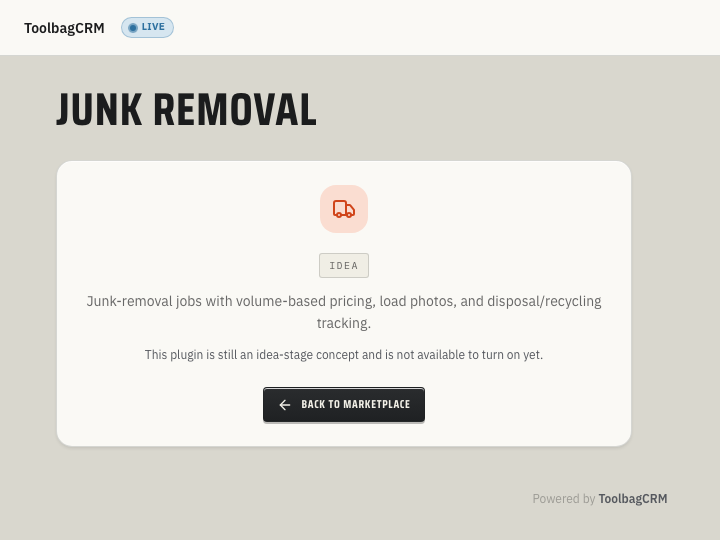
Junk Removal will help haul-away teams price jobs by load size, record what was removed, and keep disposal, donation, and recycling details with the related job.
When to use this
Use Junk Removal when your team handles cleanouts, furniture or appliance hauling, construction debris, curbside pickups, or other jobs where the office needs a record of what was hauled away and where it went.
The planned workflow is designed for teams that need to:
- Track the job and customer connected to each haul.
- Record the load size, such as quarter, half, full, or multiple loads.
- Capture item categories like furniture, appliances, yard debris, or construction waste.
- Note the disposal site, approximate weight, and whether the load included donation or recycling stops.
- Keep dump receipt links or photos available for customer follow-up and job records.
Before you start
Junk Removal is still at the idea stage. Accounts may show an idea-stage placeholder until the active haul workspace is released, and no customer-facing settings page is available yet.
Before planning a rollout:
- Confirm the plugin is available for your ToolbagCRM account or plan.
- Make sure your team already uses Jobs, because haul records are tied back to jobs.
- Decide what load-size names, item categories, disposal sites, and receipt practices your team wants to standardize.
- Watch for release notes that announce when the full Junk Removal workflow is ready in the app.
Expected workflow
Once the active workflow is available, Junk Removal is expected to fit into the job process like this:
- Open the job for the haul-away visit.
- Record the haul size and item categories after the crew completes the pickup.
- Add the disposal site and approximate weight when those details matter for billing, compliance, or customer questions.
- Mark whether part of the load was donated or recycled.
- Attach or link the dump receipt when your office needs proof of disposal.
- Review haul records from the job before invoicing or responding to customer follow-up.
The planned haul record starts from an existing job and automatically uses that job's customer. It keeps the load size, item categories, disposal site, approximate weight, donation/recycling flags, dump receipt link, haul timestamp, and team member together so the office can answer disposal questions later.
Planned load-size values include Eighth, Quarter, Half, Three-quarter, Full, and Multiple loads. Decide how your team prices those sizes before the workspace goes live.
Pricing and disposal notes
For volume-based businesses, the most useful setup work is often operational rather than technical. Decide how your team translates load sizes into pricing, when extra weight or specialty disposal fees apply, and how donation or recycling stops should be documented.
Keep those rules visible to dispatchers, estimators, and field crews so each haul is recorded consistently.
Tips
- Standardize item categories before rollout so reporting is useful later.
- Keep disposal-site names consistent across crews and office staff.
- Decide when a donation or recycling stop affects pricing before crews start recording hauls.
- Use job notes or document attachments as the temporary record until the live plugin workflow is available.
Troubleshooting
I only see an idea-stage screen
Accounts without the active Junk Removal workspace will see this idea-stage screen. The haul workflow has not been released for general use yet, so keep haul notes, photos, and receipt links on the related job until release notes announce that the workspace is active.
I cannot find a settings page
No separate customer-facing settings page is listed for Junk Removal today. Use Settings → Features to watch plugin availability, and use release notes for rollout timing.
I need to document disposal receipts now
Until the full plugin is available, keep receipt photos and disposal notes on the related job using the document/photo tools your account already has enabled.