
Automation Flows (Idea)
Idea stage: Automation Flows is a concept and is not available to turn on yet. This guide describes planned behavior and may change before release.
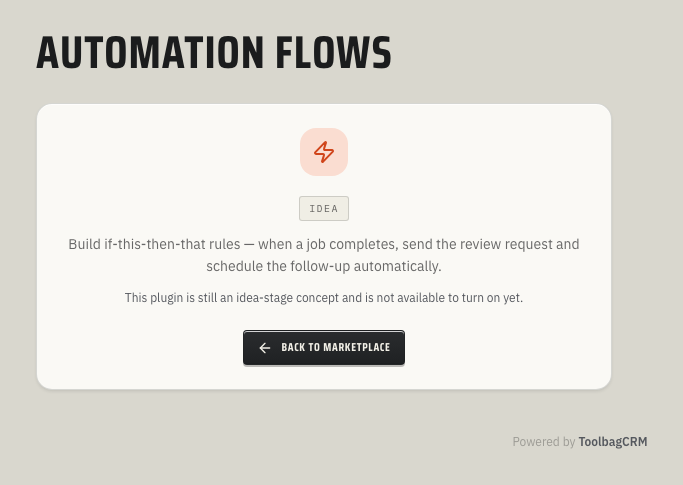
Automation Flows is an idea for “when this happens, do that” rules for repeatable follow-up work. The current screen is a placeholder, not a builder; it cannot set up a review request or schedule a check-in.
When to use this
If a working version is released, a repeatable office step could happen automatically after a ToolbagCRM event instead of relying on a dispatcher, CSR, or technician to remember it every time.
Good candidates include:
- Follow-up messages after completed jobs.
- Internal reminders after quotes, invoices, or callbacks reach a certain status.
- Back-office checklists that should start from the same trigger every time.
- Low-risk notifications that can be tested before they are turned on.
Current availability
Automation Flows is still an idea-stage concept. There is no customer-facing flow builder, settings screen, or run history to use yet.
Use this page to plan your first automations now: pick the business event, draft the follow-up action, decide who owns the flow, and wait until the builder, settings, and run-history screens are visible in your account before relying on Automation Flows for customer communication.
Plan a possible workflow
While the feature is at the Idea stage, you can outline a potential rule without changing customer records:
- Name the outcome, such as “Completed job review request.”
- Identify the business event that should start the rule and any conditions that should limit it.
- Decide what action should happen, who will own it, and how to check the affected record for the intended result.
The eventual controls, supported triggers, and actions have not been confirmed. A future test-run status by itself would not prove a customer message was sent or a follow-up was scheduled.
Before you start
Before using automation in a production account, decide:
- Which team member owns the flow if something needs to change.
- What event should trigger it.
- What should happen when the flow is paused or archived.
- Whether the first version should only notify your office team before it sends anything to customers.
- How often your team will review run history and failed/skipped runs.
Status and testing notes
Draft, active, paused, and archived statuses, along with a run log, are part of the current design, but no customer-facing builder or run history is available. The exact controls may change before release.
If a visual builder becomes available, start with one low-risk draft flow. Check that the expected follow-up actually happened in a safe test scenario before relying on it for customer work.
Tips
- Name flows after the business outcome, not the technical trigger.
- Keep the first version narrow so it is easy to test.
- Pause a flow before making large changes.
- Review run history after activating a flow for the first time.
- Avoid duplicating an automation that another plugin or integration already handles.
Troubleshooting
I only see an idea-stage screen
That is expected. Automation Flows is still at the idea stage and is not available to enable.
I do not see Automation Flows in my navigation
That is expected while Automation Flows remains at the idea stage. The current placeholder is reached from its Marketplace listing rather than an active workspace in the main navigation.
I am not sure what to automate first
Start with a reminder or internal notification rather than a customer-facing message. It is easier to validate the trigger and action pattern before customers see the results.