
Properties (Pilot)
Properties gives each customer one or more service-address profiles, including the access details technicians need before they arrive: gate codes, alarm codes, lockbox combinations, dog warnings, parking notes, best visit time, and other site notes.
Pilot availability: Existing pilot accounts can keep using Properties. New installs and re-enables are paused.
When to use this
Use Properties when:
- One customer has multiple service locations, rentals, vacation homes, or commercial sites.
- Technicians need address-specific instructions before they pull into the driveway.
- Your office needs to mark the primary property for a customer while keeping secondary sites available.
- Dispatchers want to filter service locations by customer or property type.
Before you start
- Confirm your account already has Properties enabled. New installs and re-enables are paused during the pilot.
- Make sure Customers is available, because every property belongs to a customer.
- If the page says the plugin is disabled, ask an administrator to confirm the account's pilot access. Do not disable an existing pilot installation because re-enables are paused.
- Decide which access notes your team is comfortable storing in ToolbagCRM and who should be allowed to edit them.
What you can manage
| Area | What it does |
|---|---|
| Property profiles | Store the property name, customer, type, and address-specific access details. |
| Work location link | Link the profile to one of the selected customer's existing Work locations. The work location supplies the address used by jobs and visits, while the property profile keeps the access and safety notes. |
| Legacy link review | Preview legacy property addresses, link unique exact matches to existing work locations, and create missing work locations when the match is safe. Ambiguous items remain unchanged for review. |
| Access details | Capture gate, alarm, lockbox, dog/pet, parking, best-visit-time, and other access notes. |
| Property types | Filter or label sites as Residential, Commercial, Rental, Vacation, or Multi-unit. |
| Primary property | Mark the main address for a customer, then move the primary star to another property when needed. |
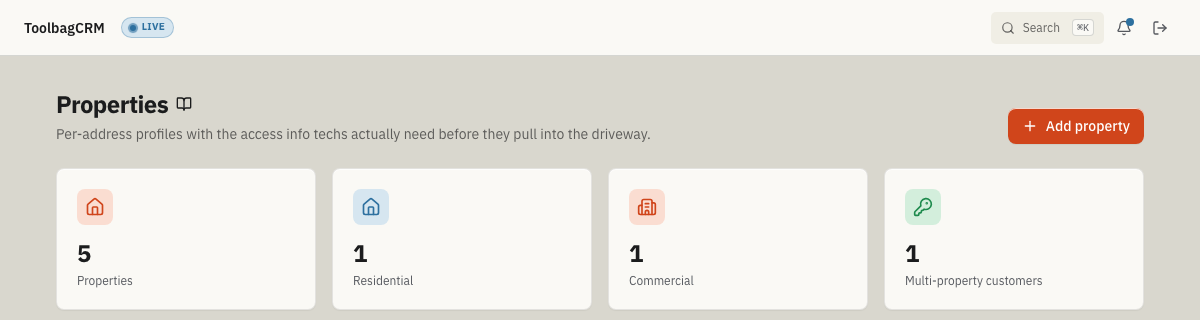
| Dashboard counts | Review total properties, residential properties, commercial properties, and customers with multiple properties. |
Add a property
- Open Properties.
- Select Add property.
- Choose the customer.
- Under Work location, select one of that customer's existing locations when this profile should supply access details for the same site used by jobs and visits. ToolbagCRM copies the work location's address and keeps those address fields locked while it remains linked. Leave Legacy address — no work location linked selected only for a separate address that is not yet a work location.
- Pick the property type.
- Enter a clear Property name, such as
Main residence,Lake house, or623 Elm rental. - For an unlinked legacy address, start typing in Street address and choose a suggestion to fill the city, state, and ZIP automatically, or enter the address fields manually.
- Fill in the access section only with details technicians should see in the field.
- If this is the customer's main site, select Set as primary property for this customer.
- Select Add.
Open a property workspace
Select a property name to open its workspace. The workspace keeps the exact site's information together:
- The linked Work location, its map-pin status, and Open map when the location is map ready.
- Gate, alarm, lockbox, parking, animal/safety, best-visit-time, access, and property notes.
- Connected workflows for records tied to that exact work location, such as jobs and invoices. The sections you see depend on the features and records available to your role.
Select a record to open it in its original ToolbagCRM feature, or use View all when a section offers that link. The workspace does not move or duplicate those records.
If the property is not linked to a work location, or its saved link needs review, ToolbagCRM shows a warning and withholds site-specific connected records. Return to Properties and use Review site links, or edit the property and choose the correct work location.
Edit a property
- Open Properties.
- Use the All customers dropdown or type tabs to narrow the list if needed.
- Choose Edit on the property card.
- Update the linked Work location, access notes, parking notes, best visit time, or general notes. The Customer field stays locked after the property is created. When a work location is linked, update its address from the customer record rather than in the property profile.
- Select Save.
If a property belongs to the wrong customer, create it again under the correct customer and copy any needed notes before archiving the incorrect profile.
Review legacy property links
Users with permission to edit Properties and access to all jobs can select Review site links to compare legacy property addresses with the work locations used by jobs and visits.
- Open Properties and select Review site links.
- Review the summary for Already linked, Link existing, Create work location, and Needs review.
- Check each proposed decision. ToolbagCRM links only a unique, exact same-customer address match. It can create a work location when no matching location exists and the property address is complete enough to use safely.
- Select Apply safe changes, then confirm. Items marked Needs review remain unchanged.
- When the review finishes, select Done.
This review does not merge or delete records. Archived properties, duplicate addresses, ambiguous work-location matches, missing links, customer mismatches, and address mismatches stay unchanged for manual review.
Archive or restore a property
Archive a property when the customer no longer uses that site. Archiving hides the profile from active work but retains its history, work-location link, and access details.
- Open the property and select Archive.
- Enter the required Archive reason.
- Select Archive property.
To review archived profiles, select Include archived. An archived card shows its reason. Select Restore, then confirm Restore property to return it to the active list.
Mark the primary property
When a customer has more than one property, the primary property shows a star. To move the star:
- Find the secondary property card.
- Select Make primary.
- Confirm the star moves to that property.
Tips
- Keep property names practical. Field teams usually recognize
Main residence,Lake house, orNorth warehousefaster than formal legal names. - Link the property to the customer's existing Work location when jobs and visits already use that site. This keeps one address source while the property holds access and safety details.
- For an unlinked legacy address, use address suggestions when they appear in Street address, then review the city, state, and ZIP before saving.
- Store only access information your team has a real operational need to see.
- Update dog, parking, and best-visit-time notes after customer calls so technicians do not rely on stale instructions.
- Use property type filters during dispatch review to separate residential, commercial, rental, vacation, and multi-unit work.
Troubleshooting
Work locations do not load
Select a customer before opening Work location. If ToolbagCRM says it could not load that customer's work locations, keep the existing link and try again later. Use an unlinked legacy address only when the site is not already represented by an existing work location.
Address suggestions do not appear
Address suggestions apply to an unlinked legacy address and start after you type at least three characters in Street address. If no suggestions appear, keep entering the address manually; ToolbagCRM still saves the structured address fields.
I cannot add a property
Make sure the customer already exists and that required fields are filled in: Customer, Type, Property name, and Street address.
A property does not appear in the list
Clear the customer dropdown and switch the type filter back to All types. If the property was archived, select Include archived.
An archive or restore says the property changed
Refresh Properties and try the action again. ToolbagCRM blocks the change when the property was updated after you opened it, preventing a newer edit from being overwritten.
Review site links is not available
The review appears only for users who can edit Properties and have access to all jobs. Ask an administrator to check both permissions. Existing pilot access to Properties is still required.
A property remains under Needs review
ToolbagCRM leaves uncertain links unchanged. Compare the property's customer and structured address with that customer's work locations, then correct the current record manually. Run Review site links again after resolving duplicate addresses, missing locations, or conflicting links.